Showing posts with label has. Show all posts
Showing posts with label has. Show all posts
Monday, January 23, 2017
Firefox 42 has a slight edge over Microsoft Edge
Firefox 42 has a slight edge over Microsoft Edge
This morning a Windows 10 Update was applied. It took a while to get the computer back for working. Microsoft Edge has many neat features and it is supposed to be better designed for HTML 5 for speed and performance than the earlier browser versions. On the other hand I recently installed Firefox 42 which is also pretty good.
For both Firefox and IE(Edge) there has been a quantum improvement during these past two years.
I just wanted to see how they compare and ran a test on this site (http://html5test.com/) for the two browsers I have on my Windows 10 Pro.
Firefox 42

MicrosoftEdge (EdgeHTML13.10586)

It appears Firefox 42.0 is quite good with a slightly (not a big difference) better rating. May be you should go to this site and check out the details.
But surely, Microsoft Edge is catching up and coming out Open.
For both Firefox and IE(Edge) there has been a quantum improvement during these past two years.
I just wanted to see how they compare and ran a test on this site (http://html5test.com/) for the two browsers I have on my Windows 10 Pro.
Firefox 42
MicrosoftEdge (EdgeHTML13.10586)
It appears Firefox 42.0 is quite good with a slightly (not a big difference) better rating. May be you should go to this site and check out the details.
But surely, Microsoft Edge is catching up and coming out Open.
Available link for download

Sunday, January 22, 2017
How to repair dead phone has shorting
How to repair dead phone has shorting
What is Shorthing
Dead Case with Shorting
We will learn about shorting this theory is not according to the electronics here we will try to understand how we will deal a mobile phone that comes in shorted position. The main problem due to shorting is often seen is Dead case and some time it drain the battery and also we face a problem that the phone turns on only with charger and if we unplug the charger phone goes to switch off.
How to test with Multimeter

We will first put your multimeter in continuity mode and we have to leads (prob) one is Red called positive (+ve) prob and another black is negative (-ve) .

In Above shown pic we have a battery connector have three terminal in most of the mobiles we will get the three terminals first is (-ve) second is BSI called Battery Signal Indicator and last one is (-ve).
Now we go through checking of a mobiles PCB we will place red prob at +ve terminal and black prob to the -ve terminal and our multimeter is set on continuity mode we can use a meter that have a buzzer inbuilt and set it to buzzer mode now the display of multimeter will show 0 we will hear the sound of beep that mean the PCB is short but we will confirm this with reverse testing now place the black prob on -ve and red prob on -ve again we will hear the same beep sound from multimeter and we will see the 0 on multimeter display now it is clear the phone PCB is shorted.
In next post we will learn about leakage then after we will go through rectification process.
You may also like to read our Chapter One
Available link for download
Sunday, January 15, 2017
How to fix a Nokia Lumia that has frozen or wont start
How to fix a Nokia Lumia that has frozen or wont start
Technical Level : Intermediate
Summary
This wiki article walks you through the procedure you can try if your phone goes into a bricked state (as a last resort before contacting Nokia Care).
Details
If your Nokia Lumia stops responding, appears to be stuck or isnt starting, you can give Nokias Software Recovery Tool a try before sending your phone off to Nokia Care. The tool can also be used on phones that appears to have software problems or software update problems. The tool is meant for home use and will only work with Windows Phone 8 devices.
Please note that your phone will be reset to factory status when using this tool. .
Start by downloading and installing Nokia Software Recovery Tool (for Windows 8.x and 7) from here:
http://download.fds-ncom.nokia.com/supportFiles/phones/files/recovery/NokiaSoftwareRecoveryToolInstaller.exe
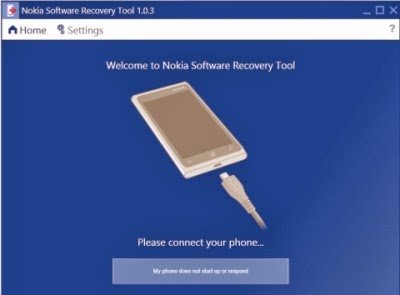
When the installation has finished, start the application and the main screen will appear:
Summary
This wiki article walks you through the procedure you can try if your phone goes into a bricked state (as a last resort before contacting Nokia Care).
Details
If your Nokia Lumia stops responding, appears to be stuck or isnt starting, you can give Nokias Software Recovery Tool a try before sending your phone off to Nokia Care. The tool can also be used on phones that appears to have software problems or software update problems. The tool is meant for home use and will only work with Windows Phone 8 devices.
Please note that your phone will be reset to factory status when using this tool. .
Start by downloading and installing Nokia Software Recovery Tool (for Windows 8.x and 7) from here:
http://download.fds-ncom.nokia.com/supportFiles/phones/files/recovery/NokiaSoftwareRecoveryToolInstaller.exe
When the installation has finished, start the application and the main screen will appear:
The procedure to restore your phone using Nokia Software Recovery Tool is as follows:
1.Disconnect all phones from your computer and click the big button titled My phone does not start up or respond.
2.A new screen will appear asking you to disconnect any phones, simply click Continue.
3.Now connect the phone to your PC (using the USB cable that came with the phone).
4.Finally you will be notified about the version that will be installed on your phone and you need to click Install to start the flashing your phone.
Nokia Software Recovery Tool will then download and install the latest ROM available for your phone.
Too complex or cant get it to work?
If this is too complex or you just cant get it to work, contact your local Nokia Care center.
Source: Windows Forum
Writer : 7thSense
Available link for download
Subscribe to:
Posts (Atom)