Showing posts with label lte. Show all posts
Showing posts with label lte. Show all posts
Tuesday, February 21, 2017
How To Install Arabic Firmware On Samsung SM J110G Galaxy J1 Ace Duos LTE
How To Install Arabic Firmware On Samsung SM J110G Galaxy J1 Ace Duos LTE
How To Install Arabic Firmware On Samsung SM-J110G Galaxy J1 Ace Duos LTE
Thursday, 03 December 2015 11:04 Mr.Firmware
Unlock Samsung Galaxy S6 Edge SM-G925F Online
Introduction:
The Samsung SM-J110G Galaxy J1 Ace Duos model was not made for the Arabic markets, This model was made for Southeast Asia markets, But as many Arabic countries started to sell this model, We made a special Arabic Firmware for it, So if you have this model and want to install full Arabic software into it, Then read this guide and follow its steps to add full Arabic support into your Samsung SM-J110G Galaxy J1 Ace Duos.

Preparation:
Preparation:
- Charge your Samsung SM-J110G Galaxy J1 Ace Duos battery to more than 80%.
- Copy any stored data on your phones internal memory, In case you want to keep them.
- Check the installed firmware version on your phone and write it down.
- It is recommended to do Factory Reset before installing the Arabic ROM.
- Install the Samsung USB Driver on your PC (If it is not already installed).
- Enable USB Debugging Mode in your phone settings.
Downloads:
- Odin3 Flasher.
- Samsung SM-J110G Special Arabic Firmware.
Installing the Arabic Firmware into the Samsung SM-J110G Galaxy J1 Ace Duos LTE:
- Extract the SM-J110G Special Arabic Firmware, You will get *.TAR.MD5 file.
- Run Odin3.exe flasher as administrator.
- Make sure that only Auto Reboot and F.Reset Time options are checked.
- Click on AP button and select the extracted *.tar.md5 file.
- Turn off your Galaxy J1 Ace Duos, And remove battery for 10 seconds.
- Put the battery back and put the phone into Download Mode.
- Connect the phone to your PC using the USB cable.
- Wait until Odin3 detects the COM port number of your connected phone.
- Click on Start button to install the special Arabic Firmware into the Galaxy J1 Ace Duos.
- Do nothing until Odin3 reboots your phone.
- Your phone will be rebooted automatically, So wait for it.
- When you see PASS! Word in green at Odin3 flasher, You can disconnect the phone.
- Congratulations, You have installed the special Arabic Firmware on your SM-J110G Galaxy J1 Ace Duos LTE.
- Wait until the phone is fully on, Then start to select the wanted settings.
- Now you can select the Arabic Language from the listed available languages.
- Done.Notices:
- In case your phone stuck at Bootloop, Then you can reflash it with any Stock Firmware to fix it.
Discussion and Sharing Results:
Please share us with your test result and success story Here
Available link for download

Monday, November 7, 2016
How to factory reset Lg Leon 4G LTE H340n from phone menu
How to factory reset Lg Leon 4G LTE H340n from phone menu
This method will reset your Lg Leon to factory settings

How to reset:
- Power on your phone
- Go to Settings/General/Backup and Reset
- Select "Factory data reset"
- Select "Delete all"
- Select "Ok"
- Wait until format end and your phone will restarts
Use this option if you have software problems with your phone or if you want to delete your personal data
Warning! All your phone data (contacts, photos, videos, music, messages, aplications, games, files,) will be lost! Please make backup first if you can!
For more details you can watch here the video tutorial:https://www.youtube.com/watch?v=d_z-3MIQYT8
Available link for download
Tuesday, October 25, 2016
How to Root Using Android 4 2 2 Jelly Bean Firmware On Samsung Galaxy S4 Mini LTE I9195 Guide
How to Root Using Android 4 2 2 Jelly Bean Firmware On Samsung Galaxy S4 Mini LTE I9195 Guide
tags: tips dan trik mengatasi susah masuk droidboot, cara mudah memperbaiki android yang softbrick, kaskus, xda developers, gagal update system, muncul logo usb, tidak bisa di root, droidboot asus, zenfone
Cara Memperbaiki Asus Zenfone Susah Masuk Droidboot /Softbrick - Tahukah Anda apa yang dimaksud dengan Droidboot atau Softbrick? Pernahkah Anda mengalami Brick dimana smartphone Android kita mengalami gagal update system, biasanya terjadi apabila kita sering mengotak-atik atau gonta-ganti tampilan, update OTA, dll.

Nah, akibat dari file system yang sering berubah-ubah biasanya para pengguna Asus Zenfone mengalami kesulitan atau gagal mengupdate system terbaru. Bahkan ada yang sering mengalami Softbrick, ditandai dengan susahnya hp kita untuk bisa masuk ke menu Homescreen. Dan setelah dihidupkan muncul logo USB, kemudian tak lama mati lagi.

Nah, untuk yang baru pertama mengalaminya kasus brick atau softbrick ini pasti sangat mengkhawatirkan. Kesalahan yang dialami antara lain:
- Handphone tidak bisa masuk ke Droidboot / Fastboot / Bootloader
- Handphone tidak bisa di Root.
Nah, kebanyakan kasus ini terjadi ketika selesai meng-update manual dan tidak melalui sistem di android, melainkan melalui komputer atau laptop. Setelah selesai update root hilang, kemudian tidak bisa masuk ke Droidboot. Sudah berbagai macam software yang dicoba, namun tetap tidak ada hasil. Lalu, bagaimana cara mengatasi masalah susah masuk ke droidboot di Android tersebut?
Cara Memperbaiki Droidboot Smartphone Android
- Silahkan Anda download firmware sesuai dengan SKU (WW, CN, TW) Anda, dan juga versi yang ada pada ponsel Anda DISINI
- Download ADB Flash Tools DISINI
- Download Intel Android Driver & ADB Driver
- Masuk ke mode Droidboot, caranya silahkan cek di artikel Cara Mengatasi Zenfone Stuck di Logo USB dan Tidak Masuk Droidboot/Recovery.
- Setelah berhasil masuk ke droidboot/ fastboot mode, install ADB Flash Tools + Intel Android Driver & ADB Driver tersebut di PC.
- Selanjutnya kita masuk ke tahap Flashing. Pertama-tama, copykan file firmware yang Anda download tadi ke dalam folder ADB, dan ubah namanya/ rename menjadi firmware.zip
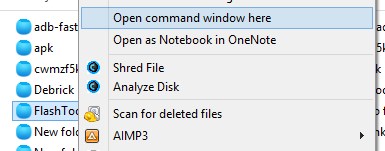
- Klik kanan pada Folder ADB FlashTool, kemudian pilih Open Command Windows here
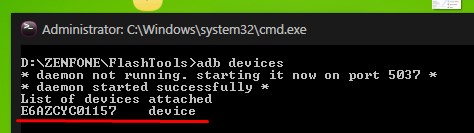
- Setelah muncul jendela command, ketik adb devices nanti akan ada muncul konfirmasi di Zenfone Anda, Anda pilih saja Yes, sampai muncul tampilan seperti ini:
- Setelah itu ketik lagi command adb reboot recovery
- Nanti akan reboot sendiri ke Recovery Mode.
- Setelah masuk ke Recovery mode, silahkan pilih yang ke-dua: Update from ADB
- Selanjutnya ketikkan command adb sideload firmware.zip
- Tunggu hingga 100% di command prompt Anda, nanti ponsel Anda dengan sendirinya akan menerima transferan update dari komputer tersebut, tunggu beberapa saat, proses ini berjalan kurang lebih sekitar 15 menit.
- Nah, setelah selesai dan mendapatkan Instalation Success, silahkan Wipe cache Partition.
- Silahkan Restart ponsel Android Anda, dan selamat masalah Droidboot sudah bisa teratasi.
Nah mungkin seperti itulah Cara Flash Ulang Android yang susah masuk ke Droidboot. Mudah-mudahan artikelnya bermanfaat. Oya, jangan lupa baca juga:
- Cara Mengatasi Game Error dan Tidak Jalan di Samsung Galaxy Y
- Solusi Mengatasi Android Yang Tidak Bisa Connect Ke Internet
Available link for download
Subscribe to:
Posts (Atom)