Showing posts with label import. Show all posts
Showing posts with label import. Show all posts
Sunday, March 5, 2017
How to import Contacts in WP8
How to import Contacts in WP8
The only one way to import contacts is you have to upload your contacts to your Microsoft Account.
Question : How to upload contacts in Microsoft/Outlook account and sync with device?
Answer:
1. Go to "www.outlook.com"
2. Sign in with your id and password
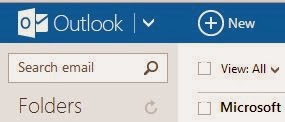
3. Click on down arrow next to the outlook logo as shown in below fig.
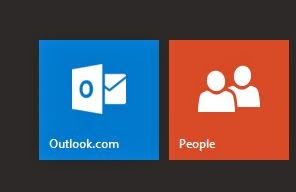
4. Select people option as shown below
5. it will bring you to following screen/menu.
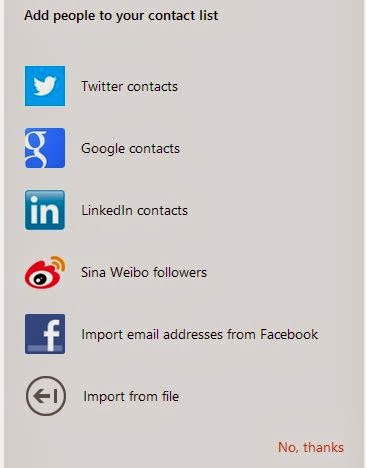
6. For e.g. to import contact from your google account then select google and feel-up required details it will directly import your google contacts to your outlook account
7. If you want to import contacts from .csv file then select last option "import from file" option.
Question : How to upload contacts in Microsoft/Outlook account and sync with device?
Answer:
1. Go to "www.outlook.com"
2. Sign in with your id and password
3. Click on down arrow next to the outlook logo as shown in below fig.
4. Select people option as shown below
5. it will bring you to following screen/menu.
6. For e.g. to import contact from your google account then select google and feel-up required details it will directly import your google contacts to your outlook account
7. If you want to import contacts from .csv file then select last option "import from file" option.
Available link for download

Wednesday, February 8, 2017
Ini Dia Cara Menggunakan Smart Import Atau Import Data Untuk Memasukan Lagu Di Dzone Karaoke Hanya di PemalasBerat blogspot com
Ini Dia Cara Menggunakan Smart Import Atau Import Data Untuk Memasukan Lagu Di Dzone Karaoke Hanya di PemalasBerat blogspot com
Ok Langsung Saja Ke TKP Pertama Untuk Smart Import Manual Operating, Buka Folder Smart importnya Dan Cari File Set Kemudian Buka Dengan Notepat Lihat Scren Shotnya

[seting]
drivepath=c:DZONE XTREME 6 PRODATABANKLAGU.DB3
Jika Di Program Files Tinggal Tambah Program Files Aja Seperti Ini
[seting]
drivepath=c:Program FilesDZONE XTREME 6 PRODATABANKLAGU.DB3
Oia Yang Ane Garis Bawahi Itu Diganti Sesuai Versi Dzone Yang Agan Punya, Misalnya Agan Punya V 3 Pro Berarti Ganti Dengan DZONE XTREME 3 PRO (Nama Folder Dzone) Ngertikan...
Setingan Di Atas Hanya Berlaku Untuk Smart Import Manual Operating Untuk Mengisi Lagu Di Dzone Versi 6 Ke Bawah Kalau Pengguna Dzone Versi 7 Keatas Dan PROKARAOKE Gak Perlu Seting Path File Set.ini Karena Sudah Terintegrasi Dalam Menu Tools nya Jadi Langsung Ikut Gambar Di Bawah Aja
Smart Import Mempunyai Beberapa Menu Import Yang Masing-Masing Menu Memiliki Pathern Yang Berbeda
1 Import OtomatisImport Data
Mempunyai Pathern JUDUL#ARTIS#KATEGORI#LEFT
Contoh: SEPARUH AKU#NOAH#INDONESIA#LEFT Jadi Jika Memakai Import Otomatis Nama File Lagu Karaoke Harus Di Rename Seprti Di Atas
Jika Masih Ada Database Lagu Lama Hapus Dulu

Kemudian Cari Lokasi Penyimpanan Lagu Karaoke Anda jika Sudah Klik Import Otomatis

2 JUDUL - ARTIS
Contoh: SEPARUH AKU - NOAH
Jadi Lagu Harus Di Rename Seperti Di Atas Liahat Gbr Di Bawah Klik Untuk Memperbesar

Import Manual Bisa Di Gunakan Jika File Lagu Berada Dalam 1 Folder Menurut Artis Contohnya Dalam Folder Tersebut Terisi Lagu Ayu Ting Ting Semua Lihat Gbr Di Bawah Klik Untuk Memperbesar

Yang Ke 2 Untuk Import Data (Bawaan Dzone V4TS) langsung Lihat Screnshotnya Klik Untuk Memperbesar


Oia Untuk Lagunya Rename Dulu Seperti Ini (WAJIB). Judul Lagu#Nama Penyanyi#Kategori#Left
Contoh: AKU MEMILIH SETIA#FATHIN#INDONESIA#LEFT
Available link for download
Subscribe to:
Posts (Atom)