Showing posts with label into. Show all posts
Showing posts with label into. Show all posts
Monday, December 12, 2016
How To Save Links Into A Google Spreadsheet In Chrome
How To Save Links Into A Google Spreadsheet In Chrome
Doing Research On The Web Is One Of The Conveniences Of Our Digital Era. Information Is Easily Accessible With A Click Of A Button, And You Don’T Need To Make That Trip To Your Local Library To Pour Over Pages Of Books.
Citable Is A Perfect Solution For Heavy Research Work That Requires A Lot Of Citations From Different Sources. Getting All Citation Information Organized Into A Nice Spreadsheet Is Also A Huge Time Saver Which Cuts Down Extra Work For The Busy Researcher.
Having Google Spreadsheet As A Way To Save The Document Is Also A Great Feature, So It’S Safely Backed Up In Your Google Drive Account, And You Don’T Have To Worry About The File Getting Accidentally Deleted Or Lost.

The Challenge, However, Is Organizing Information When It’S Scattered All Over The Web. When You’Re Doing Research That’S Heavy On Citations, Simply Bookmarking Webpages May Not Be Enough For You To Track Each Source Of Information.
A Helpful Chrome Extension Called Citable Addresses This Challenge By Enabling You To Save A Website’S Link, Along With Your Notes, To A Google Spreadsheet Document.Installing And Using Citable
- Upon Installing The Extension, You Will Find A Quotation Mark Icon On The Top-Right Corner Of The Browser.
- With The Webpage That You Want To Save In The Current Tab, Click On The Icon.
- If This Is Your First Time To Use The Extension, A Google Sign Up Window Should Prompt You To Log In And Allow Access To Your Google Drive Account. This Is Where Your Saved Links Will Be Stored. Click On The “Allow” Button To Authorize The Extension.
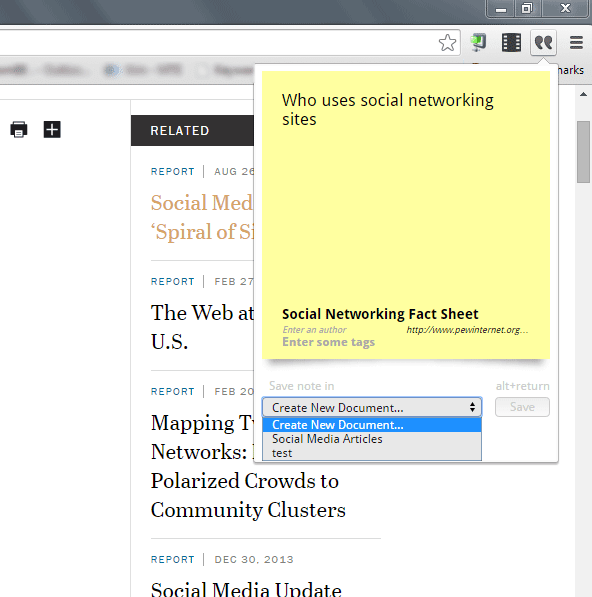
- Once You’Re Signed In To Your Google Account, You Should Now See A Drop-Down Notepad When You Click On The Quote Icon.
- In Most Cases, The Notepad Should Already Have A Current Webpage’S Information, Such As Article Title, Author And Url. If It Doesn’T Appear, You Can Add It Manually. You Can Also Add A Tag And A Summary That Will Be Included In The Google Spreadsheet.
- When Done, Click On “Create Document” On The Drop-Down List On The Bottom, And Give Your Document A Name. Click The Save Button.

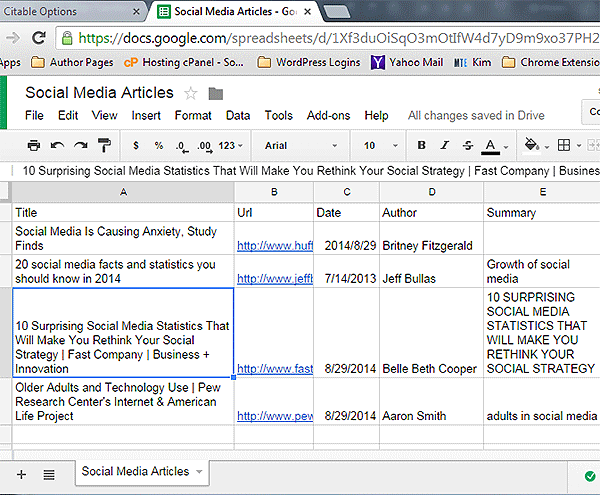
- The New Document Will Be Stored As A Spreadsheet File In A Folder Called Citable On The Main Page Of Your Google Drive Account.
- Once Saved, There Should Be A Link To View The Document. Clicking The Link Will Open A New Tab And Take You Directly To The Document In Google Drive.
- The Spreadsheet Is Organized Into Six Columns Which Are Comprised Of The Title, Url, Date, Author, Summary And Tag Of Saved Webpages.
- Repeat The Same Process For Each Webpage You Want To Cite As Your Source.
- If You Are Researching A Different Topic, You Can Create Another Document So You Can Separate Sources Accordingly.
- New Webpages That Are Added Are Updated In The Spreadsheet In Real Time, So You See Them On The Spreadsheet As Soon As They’Re Added.
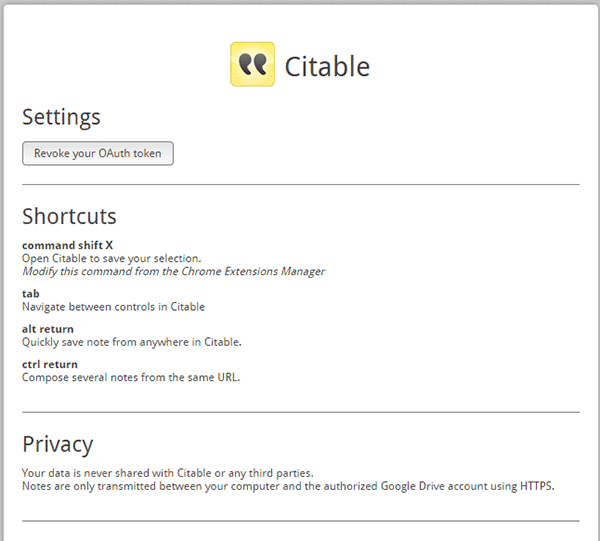
- If You Want To Learn Keyboard Shortcuts, You Can Right-Click On The Quotation Icon And Go To “Options.” You Should See Four Hotkeys For Navigating And Using The Extension.
Having Google Spreadsheet As A Way To Save The Document Is Also A Great Feature, So It’S Safely Backed Up In Your Google Drive Account, And You Don’T Have To Worry About The File Getting Accidentally Deleted Or Lost.
DOWNLOAD LINK
I Hope This Article Helps You If You Getting Any Problem Related To This Article You Can Comment By Below Comment Box We Will Help You And If You Need Any Trick Or Software Or Hack You Can Mail Us We Will Try To Give That Article We Happy To Help You All Guys.Thank You Share And Subscribe Us. #Pankaj Patidar Rock Dont Forget To Like And Follow..
Available link for download

Thursday, October 20, 2016
Hackers who broke into bank pledged Swift software – EXAME com
Hackers who broke into bank pledged Swift software – EXAME com
 |
| Camera360 |
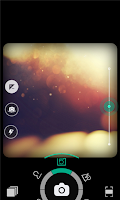
Everyone know who use facebook twitter myspace & mostly iPhone user know that "Camera360", is a popular photo sharing application on iOS and Android & now available for Nokia Lumia with Windows Phone 8.
With creative compass feature completed by 6 shooting themes, live effects, 6 classy frames, etc, "Camera360" is one of the best lens application for Nokia Lumia with Windows Phone 8.
- Camera360 for WP8 is developed by Camera360 group and now it is the most worth expecting camera app on Windows Phone 8. Camera360 for WP8 comes out in a creative way. With COMPASS inspired by that of SLR, natural effects, smart UE, powerful features, and ‘Less is more’ concept existing in each details, Camera360 for WP8 aims at being the best camera app for every Window Phone 8 addictive.
- Creative COMPASS with 6 shooting themes, offers selected effects for each photographing theme. (Auto, Portrait, Scenery, Food, Night, Microspur)
- Numerous effects & Live effects, you can see effect on photo in real time.
- Photo re-edit makes photo distinguishing.
- Photo diary sorts photos by taken date. It is easy to browse or search for a certain photo.
- 6 classy frames to decorate your photo makes photo more special.
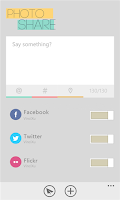
- Easily sharing photo to multi-sites brings true happiness of share.
Version
- Camera360 v 0.9.0.0
Compatibility
- Nokia Lumia Windows Phone 8
- Nokia Lumia 920, 820, 720, 620, etc.
- Free
- Camera360 for Nokia Lumia Windows Phone 8



Available link for download
Subscribe to:
Posts (Atom)