Showing posts with label memory. Show all posts
Showing posts with label memory. Show all posts
Wednesday, February 1, 2017
How To Remove Shortcut Virus From Pendrive Memory Card And HardDisk
How To Remove Shortcut Virus From Pendrive Memory Card And HardDisk
Do You Find Hidden Folders And Shortcuts Of Folder In Your Computer And Pen Drive.Do Your Flash Drive Shows Hidden Folders And Shortcuts Whenever You Plug It Into You Computer, Then You Are Reading The Correct Article.Here We Will Discuss How To Remove These Hidden And Shortcuts Of Folders.This Problem Can Also Be Faced On Computer Hdd.Many Peoples Think It Can Be Solved With Antivirus.This Problem Occurs Due To Autorun Worm Which Is The Root Cause Of It.
Whenever You Scan With Antivirus It Detects And Delete But When You Refresh It Appears Again.So Here We Will Discuss How To Remove This From ItS Root.Here We Will Discuss 2 Methods Command Prompt And Batch File.And This Are The Easiest Method To Remove These Shortcuts.
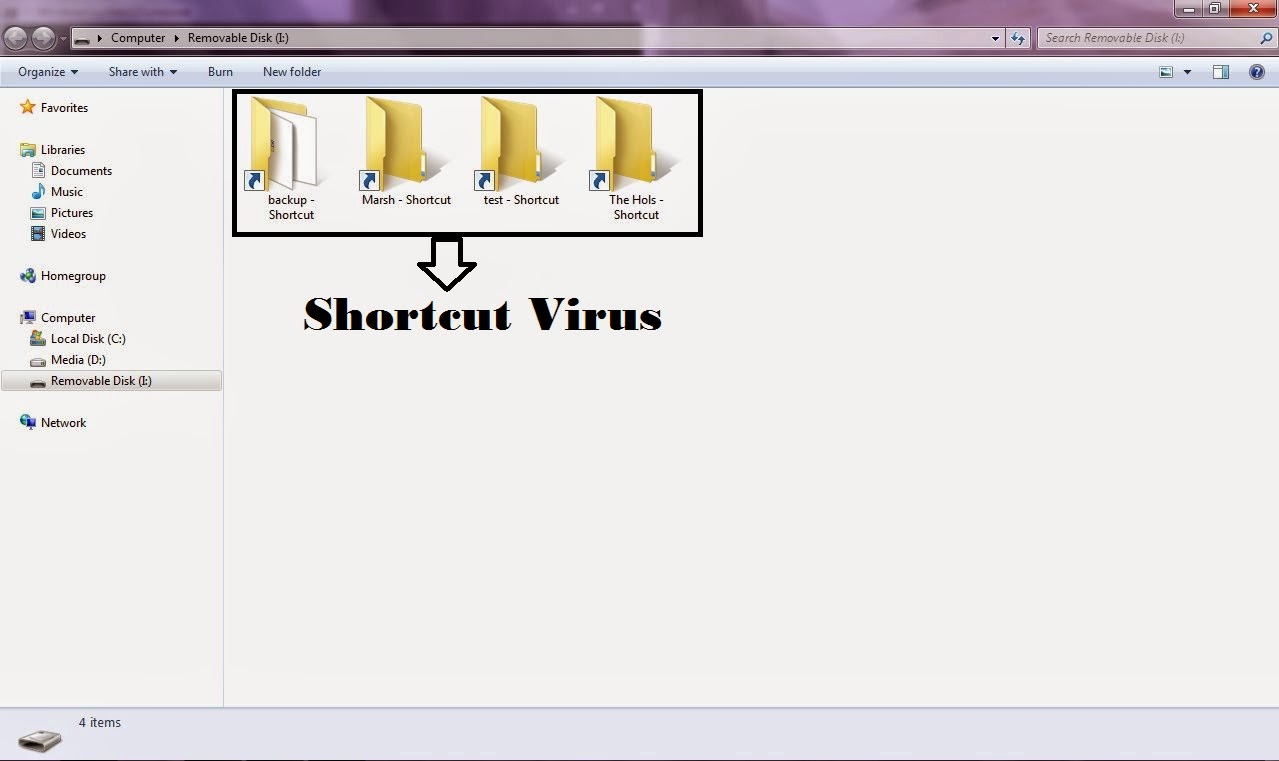
Using Command Prompt:-
To Remove Shortcut.Info File Files From Your Hard Disk, Pendrive And Memory Card.This Is The Easiest Method To Remove It From Command Prompt Just Follow Below Instructions:-
Go To Run (Win Key+R) And Type cmd And Hit Enter.Command Prompt Screen Will Appear.Now Just Type The Below Code:-
attrib -h -s -r -a /s /d drive_letter:*.*

Just Replace The "Drive_Letter" With Your Actual Drive Letter From Which You Want To Remove The Shortcut.Assume That You Pendrive Is Showing G: Letter Then The Command Will Be
attrib -h -s -r -a /s /d G:*.*
After Running This Code All File And Folder Will Be Normal And Now You Will Be Able To Delete All The Shortcuts Which Was Created By Virus Easily.
Using Bat File -
Just Attach Your Pendrive Or Memory Card From Which You Want To Remove The Virus.After Connecting Just Copy The Below Code:-
@echo offattrib -h -s -r -a /s /d drive_letter:*.*
And Paste This Code Into A New Notepad File, And As Same Of The Above Procedure Replace The "Drive_Letter" With Actual Drive Letter In The Above Code. After Doing This Edit Just Save This Notepad File As Remove_Virus.Bat Or With Any Name But Just Include (.Bat) At The End Of The File.After Saving This File Just Run It By Double Click On It And DonT Worry After Clicking On It Will Open A Command Prompt So Let It Do Its Work.Now, You Can See All Shortcut Virus And You Can Delete Them Manually They Will Not Come Back.
So Guys From This You Can Remove The Virus From A Particular Drive Of Hard Disk, Pen Drive And Memory Card.But What If You Want To Remove This Virus From All Drive/Partions Of You Hard Disk.So Below Is The Procedure To Remove The Virus From Bulk:-
Open A New Notepad File And Just Paste The Below Code In The Notepad File
@echo off attrib -h -s -r -a /s /d A:*.*attrib -h -s -r -a /s /d B:*.*attrib -h -s -r -a /s /d C:*.*attrib -h -s -r -a /s /d D:*.*attrib -h -s -r -a /s /d E:*.*attrib -h -s -r -a /s /d F:*.*attrib -h -s -r -a /s /d G:*.*@echo complete.
Now Just Save It With Any Name But Include (.Bat) In The End Of The File.And DonT Worry Guys You Must Be Thinking I Am Forgetting The Editing Step But We Have Not To Edit Any Single Word Of This Code Just Paste It And Save It With .Bat Extension.After Saving It Just Run The .Bat File And After That Delete The Shortcut Virus Easily.
Now At The End LetS Have A Look What These Commands Means:-
attrib Stands For Attribute*.* Stands For Remove Attributeh Stands For Hiddenr Stands For Read Onlya Stands For Archive/s Stands For Sub Directory/d Stands For Directory DriveDrive_Letter Stands For Actual Drive Letter From Which You Want To Remove Shortcuts
Note:- This Method Works On Windows Xp, Windows 7 And Windows Vista And For Performing These Methods You Must Be Using Admin Account.
Dont Forget To Like And Follow..

Available link for download

Wednesday, October 5, 2016
Is your memory card not able to recognize by Mac
Is your memory card not able to recognize by Mac
Memory cards are one of the smallest storage devices that can store any format of data. Due to its small size and high storing capacity memory card is used in many of the digital devices like camera, multimedia phone, etc. We can transfer data from memory card to Mac using a card reader or using the in-built memory card slot in Mac. Sometimes, when we try to connect the memory card to Mac, it may show error in recognizing memory card. This doesnt mean that your memory card is corrupted and you cannot access it.
Encountering different errors on connecting memory card to a Mac:
- No memory card found: It may happen that when you connect memory card then no memory card found error occurs.
- Card corrupted, Format the card: On connecting memory card, Mac can show you the pop-up window that memory card is corrupted and you need to format it.
- Card not recognized: When memory card gets corrrupted then card not recognized error may arise.
- Card cannot be accessed: This is also one of the most common error that can occur whenever a corrupted card is connected to the Mac.
These errors are shown on account of a physical or logical failure on the memory card. As you might have stored important data on the card and inaccessibility to it can make you panic.
Possible reasons for occurance of these errors:
There can be many reasons responsible for such errors causing the memory card to get unrecognised or corrupted.
- Removing memory card without using eject option.
- Mac getting shutdown in-between the transfer process.
- Removing card in-between the transfer process.
- Removal of memory card from card reader when card reader is connected to Mac.
- Inserting card into a card reader whose chip has been damaged.
- Virus and malware can also corrupt memory card.
How to solve memory card problem?
- Try to connect memory card using a different card reader device.
- Connect memory card to a different Mac, this may sometime solve the problem.
- Format memory card and recover lost data using a data recovery tool.
These above methods will allow to resolve the issue when memory card is not recognized by Mac.
Available link for download
Subscribe to:
Posts (Atom)