Showing posts with label shortcut. Show all posts
Showing posts with label shortcut. Show all posts
Friday, March 10, 2017
How To Delete Shortcut Viruses From Pendrive
How To Delete Shortcut Viruses From Pendrive
The shortcut virus is a well known virus that most pendrives get affected with one time or the other. Due to this, all the files and folders get changed into shortcut files and The original ones get hidden. If your pendrive has this virus, it will also affect the program files in the computer.
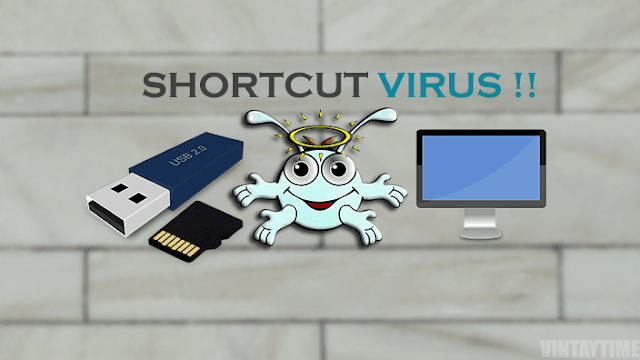
A file called ‘Autorun.inf’ is the most common virus that is found in pendrives. This can spread rapidly via memory cards, pendrives, the internet and bluetooth connections. There are two methods to solve this problem.
I Hope This Article Helps You If You Getting Any Problem Related To This Article You Can Comment By Below Comment Box We Will Help You And If You Need Any Trick Or Software Or Hack You Can Mail Us We Will Try To Give That Article We Happy To Help You All Guys.Thank You Share And Subscribe Us. #PankajPatidar

Method 1 : Using Command Prompt
- Go to start>run>cmd or press windows + r and type cmd.
- Go to the infected location
- Type: F:*.* /d /s -h -r -s
- Replace F with the infected drive’s name. Press enter.
Method 2 : Using AntiVirus
- Install any antivirus such as NetProtector or Avast for Windows PC. This is another surefire method to remove the virus.
- Scan for virus before using portable drives, pendrives etc.
I Hope This Article Helps You If You Getting Any Problem Related To This Article You Can Comment By Below Comment Box We Will Help You And If You Need Any Trick Or Software Or Hack You Can Mail Us We Will Try To Give That Article We Happy To Help You All Guys.Thank You Share And Subscribe Us. #PankajPatidar
Dont Forget To Like And Follow..
Available link for download

Wednesday, February 1, 2017
How To Remove Shortcut Virus From Pendrive Memory Card And HardDisk
How To Remove Shortcut Virus From Pendrive Memory Card And HardDisk
Do You Find Hidden Folders And Shortcuts Of Folder In Your Computer And Pen Drive.Do Your Flash Drive Shows Hidden Folders And Shortcuts Whenever You Plug It Into You Computer, Then You Are Reading The Correct Article.Here We Will Discuss How To Remove These Hidden And Shortcuts Of Folders.This Problem Can Also Be Faced On Computer Hdd.Many Peoples Think It Can Be Solved With Antivirus.This Problem Occurs Due To Autorun Worm Which Is The Root Cause Of It.
Whenever You Scan With Antivirus It Detects And Delete But When You Refresh It Appears Again.So Here We Will Discuss How To Remove This From ItS Root.Here We Will Discuss 2 Methods Command Prompt And Batch File.And This Are The Easiest Method To Remove These Shortcuts.
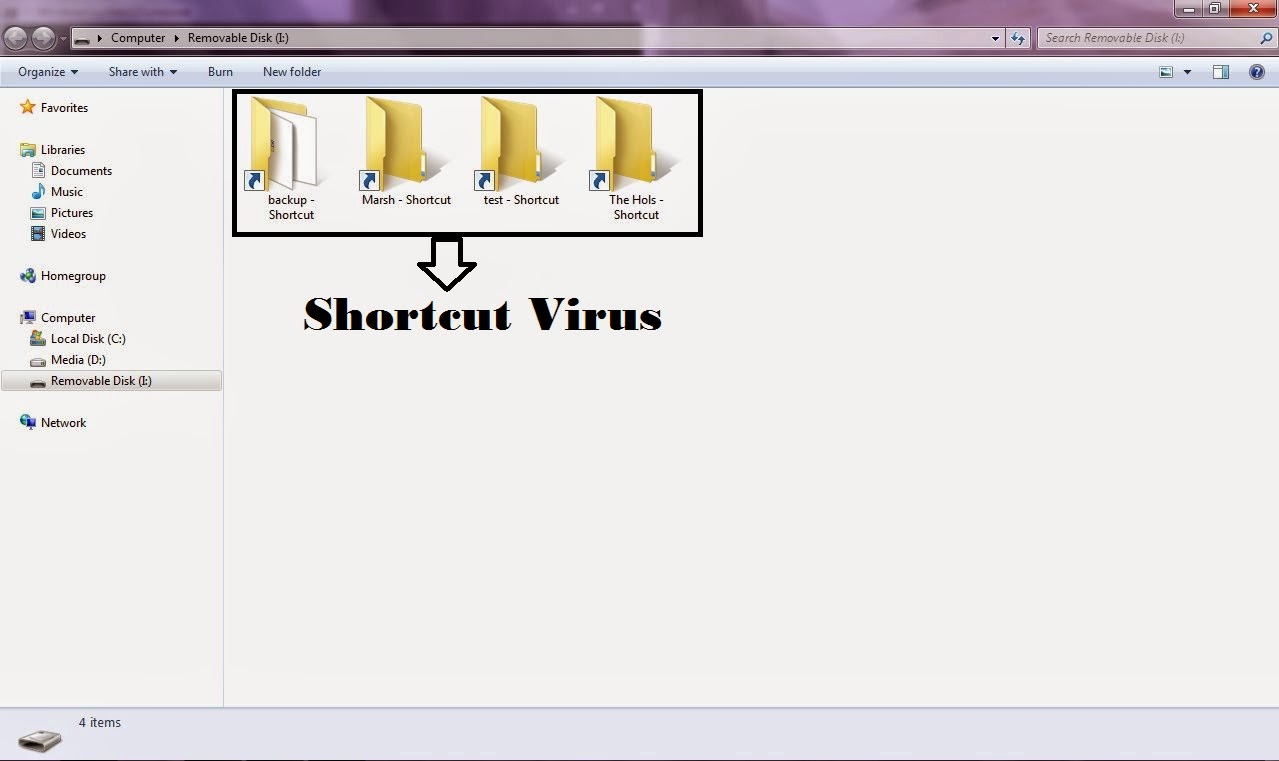
Using Command Prompt:-
To Remove Shortcut.Info File Files From Your Hard Disk, Pendrive And Memory Card.This Is The Easiest Method To Remove It From Command Prompt Just Follow Below Instructions:-
Go To Run (Win Key+R) And Type cmd And Hit Enter.Command Prompt Screen Will Appear.Now Just Type The Below Code:-
attrib -h -s -r -a /s /d drive_letter:*.*

Just Replace The "Drive_Letter" With Your Actual Drive Letter From Which You Want To Remove The Shortcut.Assume That You Pendrive Is Showing G: Letter Then The Command Will Be
attrib -h -s -r -a /s /d G:*.*
After Running This Code All File And Folder Will Be Normal And Now You Will Be Able To Delete All The Shortcuts Which Was Created By Virus Easily.
Using Bat File -
Just Attach Your Pendrive Or Memory Card From Which You Want To Remove The Virus.After Connecting Just Copy The Below Code:-
@echo offattrib -h -s -r -a /s /d drive_letter:*.*
And Paste This Code Into A New Notepad File, And As Same Of The Above Procedure Replace The "Drive_Letter" With Actual Drive Letter In The Above Code. After Doing This Edit Just Save This Notepad File As Remove_Virus.Bat Or With Any Name But Just Include (.Bat) At The End Of The File.After Saving This File Just Run It By Double Click On It And DonT Worry After Clicking On It Will Open A Command Prompt So Let It Do Its Work.Now, You Can See All Shortcut Virus And You Can Delete Them Manually They Will Not Come Back.
So Guys From This You Can Remove The Virus From A Particular Drive Of Hard Disk, Pen Drive And Memory Card.But What If You Want To Remove This Virus From All Drive/Partions Of You Hard Disk.So Below Is The Procedure To Remove The Virus From Bulk:-
Open A New Notepad File And Just Paste The Below Code In The Notepad File
@echo off attrib -h -s -r -a /s /d A:*.*attrib -h -s -r -a /s /d B:*.*attrib -h -s -r -a /s /d C:*.*attrib -h -s -r -a /s /d D:*.*attrib -h -s -r -a /s /d E:*.*attrib -h -s -r -a /s /d F:*.*attrib -h -s -r -a /s /d G:*.*@echo complete.
Now Just Save It With Any Name But Include (.Bat) In The End Of The File.And DonT Worry Guys You Must Be Thinking I Am Forgetting The Editing Step But We Have Not To Edit Any Single Word Of This Code Just Paste It And Save It With .Bat Extension.After Saving It Just Run The .Bat File And After That Delete The Shortcut Virus Easily.
Now At The End LetS Have A Look What These Commands Means:-
attrib Stands For Attribute*.* Stands For Remove Attributeh Stands For Hiddenr Stands For Read Onlya Stands For Archive/s Stands For Sub Directory/d Stands For Directory DriveDrive_Letter Stands For Actual Drive Letter From Which You Want To Remove Shortcuts
Note:- This Method Works On Windows Xp, Windows 7 And Windows Vista And For Performing These Methods You Must Be Using Admin Account.
Dont Forget To Like And Follow..
Available link for download
Saturday, January 7, 2017
Get the Good Old “Quick Launch” Toolbar and “Show Desktop” Shortcut Back in Windows 7
Get the Good Old “Quick Launch” Toolbar and “Show Desktop” Shortcut Back in Windows 7
Here are the steps
1. Right-click on Taskbar and select "Toolbars -> New toolbar...
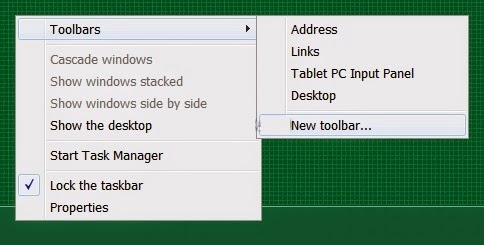
2. Itll open Browse dialog box. Now paste following string in the "Folder:" text box:
%appdata%MicrosoftInternet ExplorerQuick Launch
Press Enter and click on "Select folder" button.
3. Itll immediately add Quick Launch toolbar to Taskbar.
4. Now right-click on Taskbar and uncheck "Lock the taskbar" option.
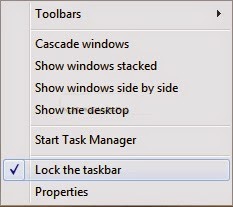
5. Youll see a placeholder to drag the Quick Launch toolbar.
6. Right-click on the toolbar placeholder and uncheck "Show Title" and "Show Text" options.
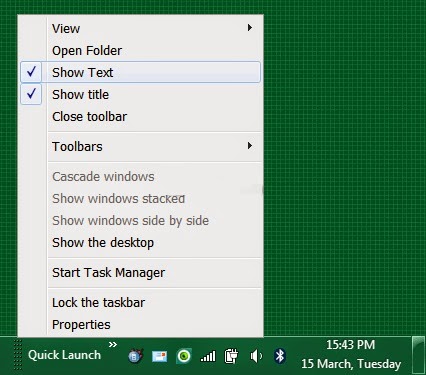
7. If you want to increase the icon size, right-click on the toolbar placeholder and enable "View -> Large Icons" option.
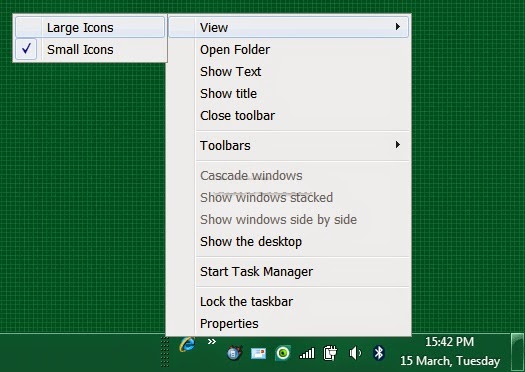
8. Drag-n-drop this toolbar to the left of Taskbar.
9. Thats it. Now you have the good ol "Quick Launch" toolbar and "Show Desktop" shortcut back in Windows 7 Taskbar.
-------------------------------------------------------------------------------------------------------
1. Right-click on Taskbar and select "Toolbars -> New toolbar...
2. Itll open Browse dialog box. Now paste following string in the "Folder:" text box:
%appdata%MicrosoftInternet ExplorerQuick Launch
Press Enter and click on "Select folder" button.
3. Itll immediately add Quick Launch toolbar to Taskbar.
4. Now right-click on Taskbar and uncheck "Lock the taskbar" option.
5. Youll see a placeholder to drag the Quick Launch toolbar.
6. Right-click on the toolbar placeholder and uncheck "Show Title" and "Show Text" options.
9. Thats it. Now you have the good ol "Quick Launch" toolbar and "Show Desktop" shortcut back in Windows 7 Taskbar.
-------------------------------------------------------------------------------------------------------
Techvedic offers on-site technology support for OEMs (original equipment manufacturers), publishers, software developers and marketers. Contact Techvedic’s consultant to find the best fit that can serve your business objectives. Our Professional serves consumers efficiently anytime, anywhere over the phone, chat or email. We do offer online support at customers’ behest.
About Techvedic: http://en.wikipedia.org/wiki/Techvedic
Get in touch with Techvedic on Social Media:
Techvedic Facebook Page: https://www.facebook.com/techvedic
Techvedic Twitter :https://twitter.com/techvedic
Techvedic Google Plus Page: https://plus.google.com/+TechvedicInc/posts
Techvedic Youtube:https://www.youtube.com/user/Techvedic
Techvedic Linkidin Profile: https://www.linkedin.com/company/techvedic
Visit: Techvedic - Computer Tech Support Company | http://www.techvedic.co.uk/ | 0800 016 3909 (UK) | support@techvedic.com
Available link for download
Subscribe to:
Posts (Atom)