Showing posts with label youtube. Show all posts
Showing posts with label youtube. Show all posts
Monday, July 31, 2017
How To View 18 Videos In YouTube Without Sign In
How To View 18 Videos In YouTube Without Sign In
Hello readers, today i am going to share a good trick by which you can view 18+ videos in YouTube without sign in. I know people dont like all the time sign in to every website so here our trick start its work. Lets See


Steps To Follow :
- Get Video URL you want to watch without sign in.
Example : http://www.youtube.com/watch?v=4Xkh6j7RMqk - Cut The Video ID of URL i.e. 4Xkh6j7RMqk
- Remove " watch? " from the URL.
Example: http://www.youtube.com/v/ - Now paste videoID in the end of URL like this
Example : http://www.youtube.com/v/4Xkh6j7RMqk?fs=1 - Now Enjoy Your Video Without Sign In.
Dont Forget To Like And Follow..
Available link for download

Wednesday, March 29, 2017
How To Upload Videos To YouTube From Windows Phone
How To Upload Videos To YouTube From Windows Phone
Wanted to upload videos to YouTube from your Windows Phone or Nokia Lumia device ? The latest Windows Phone 8.1 update has just made it possible. Now you can upload videos to YouTube directly from your phone, there by eliminating the need of a PC. Lets Begin With
Note : If the Video is stored outside of Camera Roll or Pictures folder.
If the video that you want to upload is not in the Camera Roll or the Pictures folder, you can use the File Manager to browse to the video. Long tap on the Video and choose Share> Upload to YouTube.
Upload Videos Using Upload To YouTube App
Upload to YouTube is a great (and the only) app in the Windows Phone Store which can upload videos to YouTube directly. Besides uploading to YouTube, it’s another great capability is that it can upload videos in the background and you are not needed to keep app running in the foreground all the time.- Install Upload to YouTube from the Windows Phone Store(LINK).
- Open it and tap on the Pick Video icon.

- Browse through your albums and pick the video file that you want to upload.
- Enter a Title and Description for the video. You can also select the category, tags and the visibility of the video.
- When done, tap on the Upload Icon (3rd icon) and provide access to the app.
- The video will start uploading.
- You will receive a notification when the upload finishes.
Note : If the Video is stored outside of Camera Roll or Pictures folder.
If the video that you want to upload is not in the Camera Roll or the Pictures folder, you can use the File Manager to browse to the video. Long tap on the Video and choose Share> Upload to YouTube.
Upload Videos Using Internet Explorer
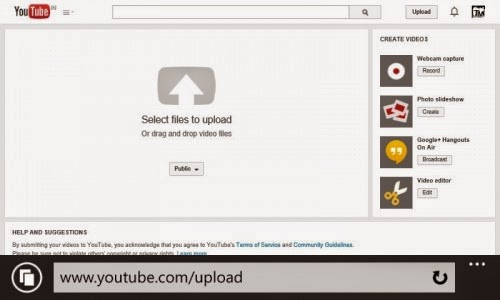
Internet Explore 11 in Windows Phone 8.1 comes together with the File Picker which let’s you select and upload files. You can make use of the same to upload videos to YouTube.- Login in to your Google Account.
- Open YouTube.com/upload
- Tap on Select files to upload and choose the video file that you want to upload.
- The upload will start.
- Do not browse away from the page or lock the screen else the upload will fail.
Dont Forget To Like And Follow..
Available link for download


Friday, February 24, 2017
How To Watch YouTube Video Without Buffering
How To Watch YouTube Video Without Buffering
YouTube is officially the most used video sharing website in the whole world. In 2013 it even crossed the milestone of 1 Billion active users, it has more than 5 million unique users visiting it every month. Those statistics are really impressive.Watching YouTube videos with a low speed internet connection would be really painful because of the buffering in the video. Did you know? 44% of the internet users run on slow internet, But all of them don’t watch buffering videos as some are smart enough to use some cool tricks to watch videos without any kind of buffering.
Its time to bid a farewell to the buffering in the videos because we have an amazing tips that’ll improve your video watching experience in YouTube. There are two methods to help you watch YouTube Videos without any buffering.
I Hope This Article Helps You If You Getting Any Problem Related To This Article You Can Comment By Below Comment Box We Will Help You And If You Need Any Trick Or Software Or Hack You Can Mail Us We Will Try To Give That Article We Happy To Help You All Guys.Thank You Share And Subscribe Us. #Pankaj Patidar Rock
Its time to bid a farewell to the buffering in the videos because we have an amazing tips that’ll improve your video watching experience in YouTube. There are two methods to help you watch YouTube Videos without any buffering.
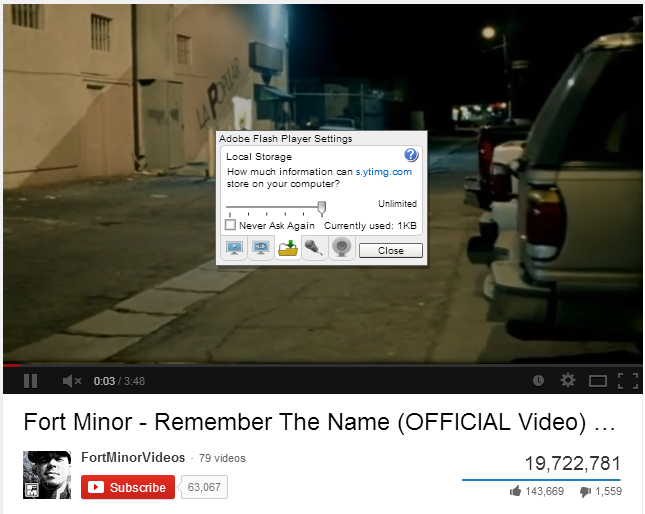
Method 1-Watch YouTube Videos Without Buffering By Increasing Local Storage
- Right Click on the video and click on the folder icon.
- Set the Storage to “Unlimited” , you just have to scroll the slider to the right side.
- Click the close button to close, now you’ll see some improvements in the Video viewing experience!
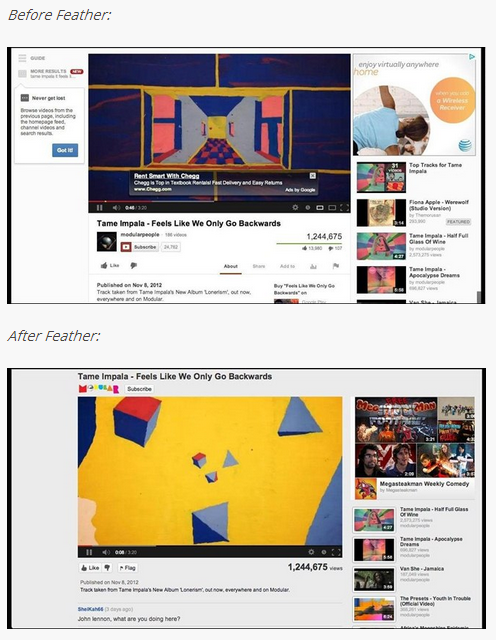
Method 2 - Use YouTube Feather Beta To Reduce Buffering
Feather is a feature provided YouTube to improve the viewing experience of the user. It cuts out all the unimportant things such as the Expandable descriptions, Share boxes, embed codes or anything that takes a lot of time to load, so this will help the server to focus on the video, not on the surrounding features.Dont Forget To Like And Follow..
Available link for download
Wednesday, December 21, 2016
How to Watch Youtube Videos In Windows Phone With Slow Speed Connection
How to Watch Youtube Videos In Windows Phone With Slow Speed Connection
Having slow internet speed on your windows phone?
Cant watch youtube videos properly?
Heres something for you.
Requirements:
*Opera mini.*Off-course your 2G slow connection.
*1 App to download from windows store.
Follow Steps properly:


Give A try by watching this video.
http://www.youtube.com/watch?v=biCQFxpI5Xw
Stay Connected with us
Like our Facebook page
Join our Facebook Group
Available link for download
Sunday, November 6, 2016
How To Download YouTube Videos On Firefox OS
How To Download YouTube Videos On Firefox OS
Want To Download And Save YouTube Videos Locally On Your Firefox Smartphone? Although This Is Not Something Allowed By YouTube (Loss Of Views And Revenue?), It Is Actually An Easy Task With The Use Of A Nice Little App Called Downtube. Strangely, Firefox Browser In The Firefox Os Is Very Basic And Can’T Even Do Downloading Of Any Type. A Save Video Option Does Appear While A Video Is Playing, But It Does Nothing.


By Default The Videos Are Saved To The Root Of Your Microsd Memory Card And There Seems No Way To Change The Save Location. The App However Does Include Other Important Features Like Searching/Downloading By Video Id And The Compatibility Mode Which Only Shows The Videos That Can Be Properly Played On Your Device.
 I Hope This Article Helps You If You Getting Any Problem Related To This Article You Can Comment By Below Comment Box We Will Help You And If You Need Any Trick Or Software Or Hack You Can Mail Us We Will Try To Give That Article We Happy To Help You All Guys.Thank You Share And Subscribe Us. #Pankaj Patidar Rock
Downtube – Youtube Video Downloader For Firefox Os
Downtube Logo Firefox Osdowntube Is A Small App For Firefox Os Smartphones Which Is Capable Of Downloading Videos From Youtube And Save Them Locally For Playback At A Future Time Or For Sharing With Friends. The App Which Can Be Downloaded From Firefox Marketplace Is Capable Of Downloading Videos In Various Formats Up To A Maximum Of Medium ( 360P) In Mp4 Format.To Download A Video:
- Install And Open Downtube
- Key In The Name Of The Video In The Box Present On The Main Screen.
- Choose From The Most Appropriate Result.
- Choose The Quality And Start Downloading.
Download Downtube For Firefox Os
To Download, Either Search ‘Downtube’ In The Firefox Marketplace On Your Phone Or Use The Link Or The Qr Code Below To Access The App On The Web Version Of Firefox Marketplace.Dont Forget To Like And Follow..
Available link for download
Monday, October 10, 2016
How to Download Any Videos on YouTube With The Word Magic
How to Download Any Videos on YouTube With The Word Magic
Everybody spend hours watching videos on YouTube, some wish to download but don’t really know how to go about it; and it can be so frustrating streaming directly online if the network is so slow… The truth is, in one way or the other when streaming YouTube videos you’ll encounter an enemy call “buffering”.
I’m going to show you the simplest method of downloading YouTube videos with the word MAGIC on any device. Magic is a word, but when applied it becomes magical.

How Can I Download YouTube Videos With The Word Magic?
You don’t need any app to do this at all, just locate your favorite mind blowing videos and apply the word magic as seen below
==>E.g Lets say you want to download this movie https://www.youtube.com/wach?v=csrnekw7Avk
To download, apply magic in-between like this https://www.youmagictube.com/watch?v=csrnekw7Avk
… and your download will begin.
It works on all device that has been empowered to surf the internet.
…Let the magic begin!
Available link for download
Subscribe to:
Posts (Atom)