Showing posts with label contacts. Show all posts
Showing posts with label contacts. Show all posts
Sunday, March 5, 2017
How to import Contacts in WP8
How to import Contacts in WP8
The only one way to import contacts is you have to upload your contacts to your Microsoft Account.
Question : How to upload contacts in Microsoft/Outlook account and sync with device?
Answer:
1. Go to "www.outlook.com"
2. Sign in with your id and password
3. Click on down arrow next to the outlook logo as shown in below fig.
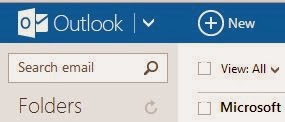
4. Select people option as shown below

5. it will bring you to following screen/menu.
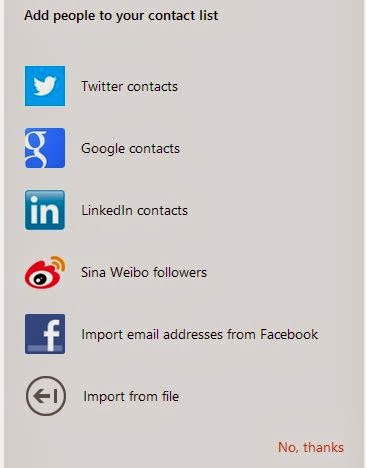
6. For e.g. to import contact from your google account then select google and feel-up required details it will directly import your google contacts to your outlook account
7. If you want to import contacts from .csv file then select last option "import from file" option.
Question : How to upload contacts in Microsoft/Outlook account and sync with device?
Answer:
1. Go to "www.outlook.com"
2. Sign in with your id and password
3. Click on down arrow next to the outlook logo as shown in below fig.
4. Select people option as shown below
5. it will bring you to following screen/menu.
6. For e.g. to import contact from your google account then select google and feel-up required details it will directly import your google contacts to your outlook account
7. If you want to import contacts from .csv file then select last option "import from file" option.
Available link for download

Wednesday, January 4, 2017
How To Transfer Contacts Photos And Other Data From Your Old iPhone To iPhone6
How To Transfer Contacts Photos And Other Data From Your Old iPhone To iPhone6
There Are Many iPhone Users Who Have Bought New iPhone 6 And 6 Plus, But Don’T Know The Method Of Transferring Contacts, Photos And Other Data From Old iPhone To Their New iPhone 6.
So, Today The Most Asked Query Of New iPhone 6 Users Is Going To Be Solved And Cleared By Us. We Have Tried To Make This Guide As Simple And Dry As Dust. You Need To Follow The Simple Steps Below In Order To Learn That, “How To Transfer Contacts And Other Information To Your New Brand iPhone 6 ?”
Steps To Transfer Contacts, Photos And Other Data ?
I Recommend You To Follow The Steps Clearly As It May Creates Complications For You, If Youve Missed Any Step Then It Will Not Work.- First Of All Install The Latest Update Of iTunes On Your Computer (Windows Or Mac). As The Latest Update Of Itunes Is Highly Recommended.
- Afterwards, Connect Your Old iPhone With Your Computer.
- Now, Take The Backup Of Your Complete Data Of Your Old iPhone To iTunes.
- Ones Backup Is Done, Turn Off Your Old iPhone And Unplug It From Your Computer. The Turning Off Your Old iPhone Is Strictly Needed.
- Now, Connect Your New iPhone 6 Or 6 Plus With Your Computer And Set Up The Initial Steps.
- In The Initial Steps, You Will Have A Message Of Set Up iPhone, You Have To Tap On Restore From iTunes Backup.

- Afterwards, It Will Ask You To Connect Your New iPhone 6 Or 6 Plus To Your Computer And Then Connect It With iTunes On Your Computer.
- Ones You Have Connected To iTunes Then It Will Ask You To Restore The Old Backup Or To Take A New One. You Need To Select, Restore The Old Backup And Continue With Further Steps. Make Sure That You Select The Restoring Data Which Have Been Recently Taken.
- The Restoration Process Will Take Some Time. The Time Consumption Depends Upon The Size Of Data.
- Ones, Restoration Process Is Done, Your New iPhone 6 Or 6 Plus Will Get Started And Your All Data Has Been Transferred To Your New Device.
- Afterwards, You Can Manually Transfer The Other Data Like: Music, Videos And Apps To Your New iPhone Using iTunes.
If You Have Taken The Backup Of Your Device At iCloud Then You Can Also Follow The Same Steps Given Above, You Only Need To Update Your iCloud Account. One More Thing That It Will Ask You To Enter The Apple Id And Password Before Transferring.
Dont Forget To Like And Follow..

Available link for download
Subscribe to:
Posts (Atom)